
DStv error codes look alarming on screen, but most of them tell you exactly what is wrong — and most clear in minutes once you know what the code points at. In this guide I group the common codes by type, so you can tell a smartcard fault from a subscription hold or a signal problem at a glance, then fix the right thing first. These are the same codes we see on call-outs across South African homes every week.
- DStv error codes fall into three groups — smartcard, subscription, and signal/hardware. The group tells you what to fix.
- Smartcard codes (E04-4, E05-4, E06-4) mean reseat or clean the card before anything else.
- Subscription codes (E16, E17, E19-4, E30) mean clear the error on Self Service or the MyDStv app after paying.
- Signal codes (E48) mean a loose cable or a dish that has drifted out of alignment.
- When a code is genuinely a hardware fault, a power-cycle is your first move — a workshop repair is the last.
DStv error codes and meaning: how to read them
Every DStv error code is the decoder telling you which part of the chain has failed — the smartcard, your subscription, or the signal coming off the dish. Once you can place a code in the right group, the fix is usually obvious. A code starting around E04 to E06 is almost always the smartcard. Codes in the E16 to E33 range are about your subscription and whether the decoder has been authorised to show a channel. An E48 is a signal problem out at the dish.
The number after the dash (for example the “-4” in E16-4) is a sub-code that narrows it down, but you do not need to memorise those. What matters is the leading number, because that decides whether you reseat a card, pay and refresh your account, or check the cable from the dish. Work in that order and you will clear the vast majority of errors without a call-out.
Before you do anything fancy, switch the decoder off at the wall, wait 30 seconds, and switch it back on. A clean power-cycle clears more on-screen errors than any other single step.
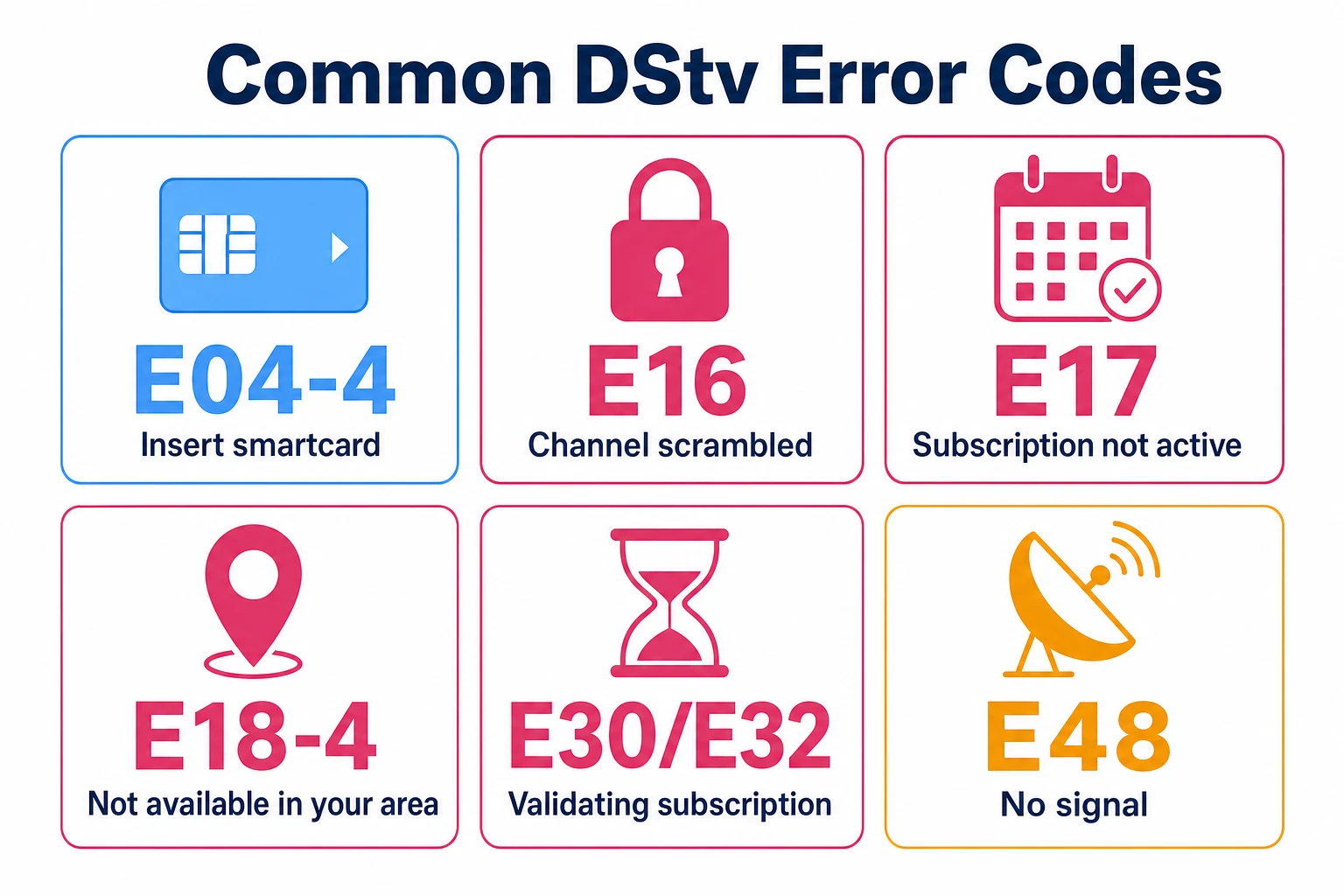
Master list of common DStv error codes
This table covers the codes we see most often, what each one actually means, and the first fix to try. Start at the top of the list for your code, do the first fix, and only escalate to a call-out if the error survives a power-cycle and the obvious check.
| Error code | What it means | First fix |
|---|---|---|
| E04-4 | Please insert your smartcard | Reseat the smartcard the right way round in its slot |
| E05-4 | Smartcard unknown / not recognised | Wipe the card with a dry cloth and reinsert it |
| E06-4 | Smartcard has failed | Check the card for damage and reseat it; replace if faulty |
| E16 | Channel currently scrambled / not in your package | Pay your account, then clear the error on Self Service |
| E17 | Subscription not active | Activate or pay your subscription, then refresh the decoder |
| E18-4 | Channel not accessible from this location | Wait up to 30 minutes; contact DStv if it persists |
| E19-4 | Channel scrambled — decoder inactive or on hold | Clear the error on Self Service after paying |
| E30 / E30-4 | Subscription being validated (system message) | Wait 5 minutes without changing channels |
| E32 / E32-0 / E32-4 | Please wait for validation | Leave the remote alone for 5 minutes; refresh on the app |
| E33-4 | Incorrect smartcard inserted | Insert the correct smartcard for that decoder |
| E48 | Signal not found | Check dish cables; realign the dish if needed |
Smartcard errors: E04-4, E05-4, E06-4 and E33-4
Smartcard codes are the easiest group to fix because the problem is sitting right in front of you. The decoder cannot read the card, so it cannot prove to DStv that you are entitled to the channel. Nine times out of ten the card has simply worked loose, picked up dust on the gold contacts, or been pushed in the wrong way round. None of these need a technician — they need two minutes and a dry cloth.
E04-4 and E05-4 — card missing or not recognised
E04-4 means the decoder cannot find a smartcard at all, and E05-4 means it can see one but does not recognise it. For both, slide the card out, check it is the right card for that decoder, wipe the gold contacts gently with a dry, soft cloth, and slide it back in firmly with the chip facing the way the slot shows. Give the decoder a moment to read it before you reach for anything else.
E06-4 and E33-4 — failed or incorrect card
E06-4 means the smartcard itself has failed, and E33-4 means the wrong card is in the slot — common in homes with more than one decoder. Confirm the card is not cracked or warped, and that it matches the decoder it belongs to. If a clean, correctly matched card still throws E06-4, the card is likely dead and DStv will need to issue a replacement.
Never force a smartcard or use anything wet to clean it. A bent card or moisture on the contacts can damage both the card and the decoder’s reader, turning a free fix into a paid one.
Subscription and channel errors: E16, E17, E18-4, E19-4
This group is about authorisation rather than hardware. The decoder is working and the card is fine, but DStv has not given the green light for that channel — usually because the account is unpaid, on hold, or the channel is not in your package. These codes almost always follow a missed payment or a recent package change.
E16 and E19-4 — channel scrambled
E16 and E19-4 both mean the channel is scrambled and the decoder is not authorised to unscramble it. If you have just paid, the fix is to clear the error on the DStv Self Service portal or the MyDStv app: enter your smartcard number, select the error, and follow the prompts to refresh the decoder. If a whole batch of channels has vanished rather than just one, that is a different issue — our guide on how to restore missing channels walks through the rescan.
E17 and E18-4 — inactive or location-locked
E17 means your subscription is not active — pay or reactivate, then refresh the decoder. E18-4 means the channel is not accessible from your current location; if it does not resume within about 30 minutes, contact DStv. Neither of these is a fault with your equipment, so there is no point opening up the decoder or touching the dish.
Validation messages: E30, E30-4, E32 and E33
The E30 and E32 family are not really errors — they are status messages telling you DStv is busy validating your smartcard and subscription. They usually appear right after a payment or a refresh while the decoder talks to the broadcast system. The single most important thing is to leave the decoder alone while it works.
Allow at least five minutes, and do not press buttons or change channels during validation — interrupting it just restarts the clock. If the message has not cleared after a few minutes, give the decoder a refresh from the MyDStv app or the Self Service portal, or send it through the DStv WhatsApp service. These tools push a fresh authorisation to your decoder over the air, which is exactly what a stuck validation needs.
A validation message that never clears, even after a refresh, often means the payment has not reflected on the account yet. Confirm the payment went through before assuming the decoder is at fault.
Signal and hardware errors: E48 and a frozen decoder
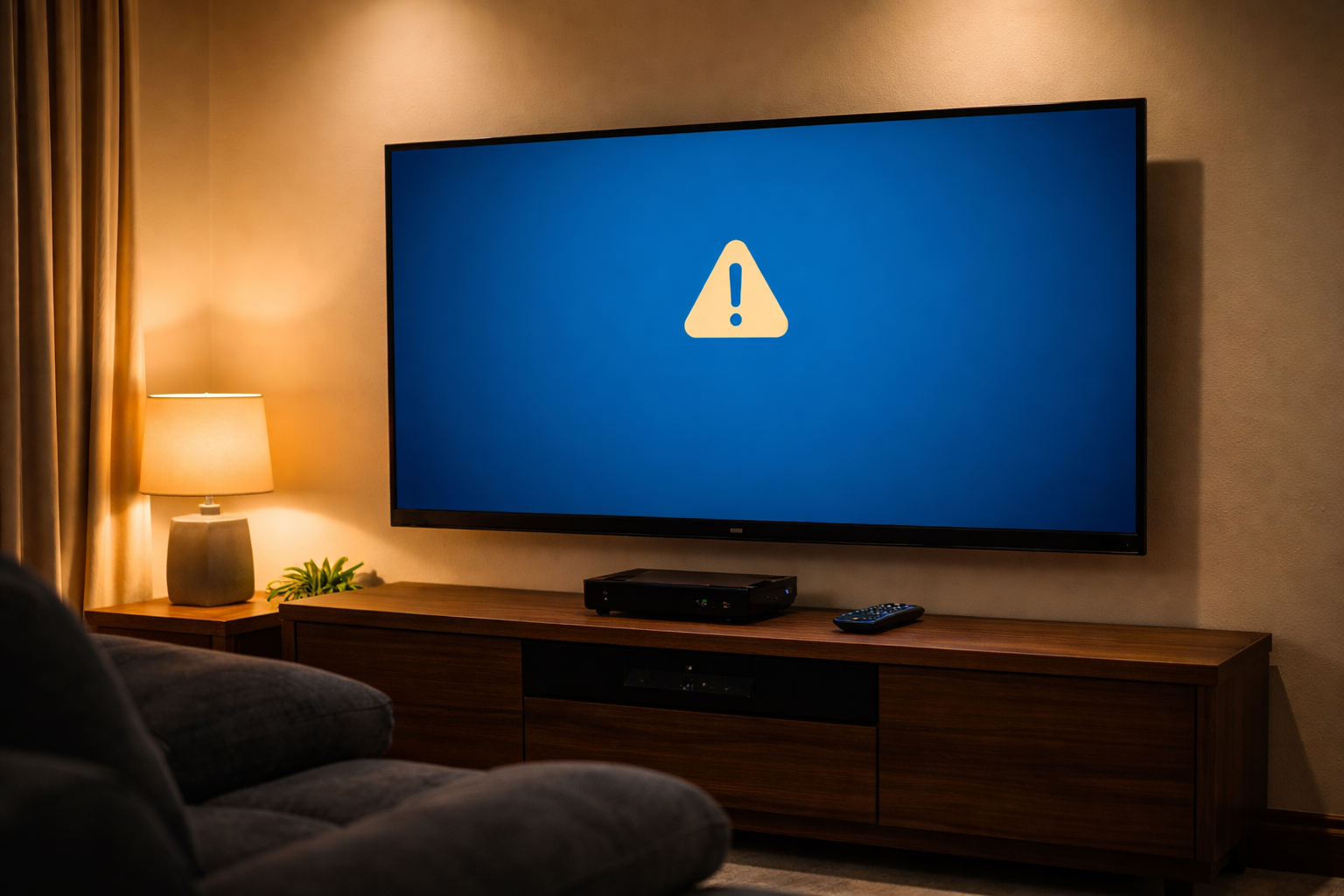
E48 means “signal not found” — the decoder is alive but is getting nothing usable from the dish. The usual culprits are a loose or weathered cable at the LNB or the back of the decoder, a cable damaged by sun and rain, or a dish that has drifted out of alignment after wind or a knock. Start with the cheap checks: make sure both ends of the white cable are firmly seated, then power-cycle the decoder at the wall.
If the cables are sound and E48 stays put, the dish has most likely moved and needs realigning to lock back onto the satellite. That is precise work best done with a signal meter, which is why a drifted dish is usually a job for an accredited installer. A decoder that will not even reach the error screen is a separate problem — if the box is completely dark, see our guide on a decoder that will not switch on before assuming a signal fault.
When it is a true hardware fault
If a power-cycle, a clean card and tight cables have not cleared the code, you may be looking at a failed power supply or a faulty decoder. At that point it is a workshop job rather than a DIY one. We handle DStv decoder repairs and replacements across South Africa, testing the unit properly before deciding whether a repair or a swap makes more sense.
Parental control and channel-restore codes
A couple of codes get mistaken for faults when they are actually working as intended. E42-32 is the parental control lock — the channel is blocked behind a PIN on purpose. Enter the correct PIN to unblock it; if you would rather lift the restriction, our guide on clearing a PG-blocked message covers it. E37-32 means a service does not exist on the decoder, which a restart and rescan usually fixes by pulling the channel list down fresh.
The thread running through almost every code in this guide is that the decoder is telling you the truth — smartcard, subscription, or signal. Match the code to its group, do the first fix, power-cycle, and only then reach for the phone. For the full range of fixes and services, browse our other DStv installation and repairs guides.
DStv error code FAQs
How do I clear DStv error codes?
For most subscription codes, visit the DStv Self Service portal or open the MyDStv app, enter your smartcard number, select the error you are seeing, and follow the prompts to refresh the decoder. For smartcard and signal codes, reseat the card or check the cables first, then power-cycle the decoder at the wall.
How do I clear error code E48 on DStv?
Make sure the cable from the satellite dish is firmly connected at both ends, then switch the decoder off at the wall, wait at least 10 seconds, and switch it on again. If E48 persists, the dish likely needs realigning — book one of our DStv installers in Benoni for a signal check.
How do I clear my DStv E16 error?
E16 usually follows an unpaid account or a channel that is not in your package. Pay or check your account, then clear the error on the DStv Self Service portal by entering your smartcard number, selecting the E16 error, and following the prompts.
How do I refresh my DStv decoder?
You can refresh the decoder over the air from the MyDStv app or the Self Service portal, or do a hard reset by unplugging it from the wall, waiting about 10 seconds, and plugging it back in so it reloads.
How do I scan my DStv signal?
Open the settings menu on your decoder with the remote, go to satellite settings, select “additional networks”, and run a new scan. If the dish has moved, a rescan alone will not help — the dish needs realigning first.
Further reading
Need Professional DSTV Installation?
Our accredited installers offer same-day service across South Africa.